
GNOME OS Preview: What It Is, How to Install It and What You Get

GNOME OS Preview in short
- What it is: GNOME's own operating system, built from the latest stable GNOME release (51.1 at launch) instead of nightly code. The GNOME project announced it on 16 October 2026.
- Install it if: you have a spare PC or a virtual machine, you want to see where GNOME is heading, and you accept reinstalling in a few years.
- Skip it if: you need Secure Boot, a package manager such as apt or dnf, dual boot, or a system you can rely on every day. Ubuntu fits those needs better today.
- What the test found: the install takes about two minutes, the ISO you download is already behind the current build, a full update is about 3.3 GB with no delta updates yet, and the base system is read-only.
GNOME OS Preview is a version of GNOME's own operating system that follows the stable GNOME releases. Until now GNOME OS only existed as a Nightly image for developers, rebuilt from the newest code every day. Preview is the first edition aimed at people who are not GNOME developers. It is image-based: the system sits in a read-only image, updates arrive as whole images, and you add software with Flatpak or in containers.
This guide installs it. The test ran in a virtual machine on 19 October 2026 with the 51.1 ISO (3.74 GB): install, first boot, a full system update to 51.1-3, a Flatpak app, an Ubuntu container and the optional developer extension. Whatever is described as tested below comes from that run, and the end of the next section lists what a virtual machine could not show.
- What GNOME OS Preview is
- How this was tested
- How to install GNOME OS Preview
- What you get after the install
- How updates work on GNOME OS
- How to install software on GNOME OS
- What is still missing before it is stable
- Is GNOME OS Preview right for you?
- Troubleshooting GNOME OS Preview: common problems and questions
- Is GNOME OS Preview stable enough for daily use?
- Where do I download GNOME OS Preview?
- Can I run GNOME OS Preview in VirtualBox or GNOME Boxes?
- Does GNOME OS have a package manager?
- How do I go back to the previous version after a bad update?
- updatectl enable --now devel ends with "Connection timed out". What now?
- How is GNOME OS different from GNOME on Ubuntu or Fedora?
- Will my NVIDIA card work on GNOME OS?
- Sources and further reading
What GNOME OS Preview is
GNOME OS is an operating system the GNOME project builds itself. For years it was a testing tool: developers used it to try GNOME features before any distribution shipped them. According to the announcement by GNOME developer Adrian Vovk, Preview tracks the newest stable GNOME and uses the GitLab branches that also produce the org.gnome.Platform Flatpak runtimes. At the time of writing that release is GNOME 51.1.
The project's own wording is careful. Preview is "significantly more stable" than Nightly, but it had only been available for a few weeks and has seen limited real-world testing. It will probably be supported for "a few years", and the project is "explicitly not promising updates in perpetuity". GNOME OS will not be called Stable until there is a clear long-term upgrade path for existing installs.
| GNOME OS Preview | GNOME OS Nightly | |
|---|---|---|
| Built from | The latest stable GNOME release (51.1 at launch) | The latest commit of every GNOME component |
| Aimed at | Enthusiasts who are not GNOME developers | GNOME developers and designers |
| What os.gnome.org says | "Recommended for most people" | "Recommended for GNOME developers" |
| Stability promise | Significantly more stable than Nightly, few weeks of real use | Rebuilt constantly from the newest code |
| Downloads | x64 ISO (ARM is listed on the page without a separate link) | x64 ISO (same note for ARM) |
"Image-based" is the idea that matters. Other distributions assemble a system from thousands of packages on your computer. GNOME OS ships the whole base system as one image, built with BuildStream. Other projects work the same way: KDE Linux ships its base as one image, and its developers are testing a BuildStream-based build on the same FreeDesktop Flatpak SDK that GNOME OS uses.
How this was tested
All the numbers in this guide come from one virtual machine. That is a limit, and the details are below so you can judge it.
| Item | Value |
|---|---|
| Date | 19 October 2026 |
| Host | AMD Ryzen 7 250 laptop, QEMU 11.1.2 with KVM, UEFI firmware (OVMF) with Secure Boot off |
| Virtual machine | 4 vCPU, 4 GB RAM, 40 GB virtio disk, NAT network, standard VGA display |
| ISO | gnome_os_51.1-x86_64.iso, 3,741,377,024 bytes, downloaded in 77 seconds |
| What it ran | GNOME OS 51 with image version 51.1, then 51.1-3 after the update. Kernel 7.2.6, GNOME Shell 51.1, systemd 262 |
Not tested: real hardware, Secure Boot, TPM and disk encryption (the VM has no TPM), NVIDIA drivers, dual boot, ARM and phones, GNOME Boxes, VirtualBox, writing the ISO to a USB stick, and booting an older version from the boot menu. The display was a basic VGA device, so nothing here says how fast GNOME runs on real graphics. Times come from a fast connection and an NVMe drive, so treat them as relative, not as promises.
How to install GNOME OS Preview
What you need
| Requirement | What GNOME OS Preview needs |
|---|---|
| Firmware | UEFI on, Secure Boot off. The install guide says so in one sentence |
| Disk | A whole disk. The test used 40 GB. The docs state no minimum size |
| Memory | The docs state no minimum. The test used 4 GB |
| USB stick | 4 GB or larger (the ISO is 3.74 GB) |
| Dual boot | "Not recommended or officially supported". See dual boot with Windows 11 if you want to try it anyway |
Download the ISO
The Preview ISO is on os.gnome.org. The direct link for x64 is https://os.gnome.org/download/stable/51/gnome_os_x86_64.iso, which redirects to the current build (gnome_os_51.1-x86_64.iso on 19 October). The Nightly ISO is a different link: https://os.gnome.org/download/latest/gnome_os_nightly_x86_64.iso. Pick Preview.
The download page shows no checksum. The file downloaded for this test has this SHA-256, so you can compare yours if it is the same build:
sha256sum gnome_os_51.1-x86_64.iso
a94c7be758b185c169dc6db707fabebd69e12dfff439294891870fa96b30fd15  gnome_os_51.1-x86_64.iso
A newer build will have a different hash. That is normal, because the ISO is rebuilt when the project publishes a new image.
Boot it in a virtual machine or from USB
For a real computer, the official guide restores the ISO to a USB stick with GNOME Disks (the Restore Disk Image option) and boots it with Secure Boot off. That path was not tested here.
For a virtual machine, the GNOME OS page mentions GNOME Boxes only, and only the Flathub version. QEMU with KVM also works. These are the options used in the test (the test ran headless and took screenshots through the QEMU monitor, so add a display option such as -display gtk or -display sdl, whichever your QEMU build has):
truncate -s 40G gnomeos.img
cp /usr/share/edk2/x64/OVMF_VARS.4m.fd OVMF_VARS.fd

qemu-system-x86_64 -enable-kvm -cpu host -smp 4 -m 4096 -machine q35 \
  -drive if=pflash,format=raw,readonly=on,file=/usr/share/edk2/x64/OVMF_CODE.4m.fd \
  -drive if=pflash,format=raw,file=OVMF_VARS.fd \
  -drive file=gnomeos.img,if=virtio,format=raw \
  -drive file=gnome_os_51.1-x86_64.iso,media=cdrom,readonly=on,if=none,id=cd \
  -device ide-cd,drive=cd,bootindex=1 \
  -device VGA -device qemu-xhci -device usb-kbd -device usb-tablet \
  -netdev user,id=n0 -device virtio-net-pci,netdev=n0
The OVMF paths above are the ones on Arch Linux. Other distributions put the files elsewhere. If you prefer a graphical tool, VirtualBox is covered in another guide, but GNOME OS was not tried in it.
The setup wizard and the installer
The ISO boots into a live GNOME 51 session. In the test the first wizard screen was on screen in under 45 seconds from power on. The wizard has six screens: language, keyboard layout, privacy (location services are on by default), time zone (found automatically over the network), your name and username, and a password. Nothing in it asks about disks.
After the wizard you land on the desktop with an "Install GNOME OS" window already open. It offers "Try GNOME OS" or "Install now" and warns that the live session is not saved on disk.
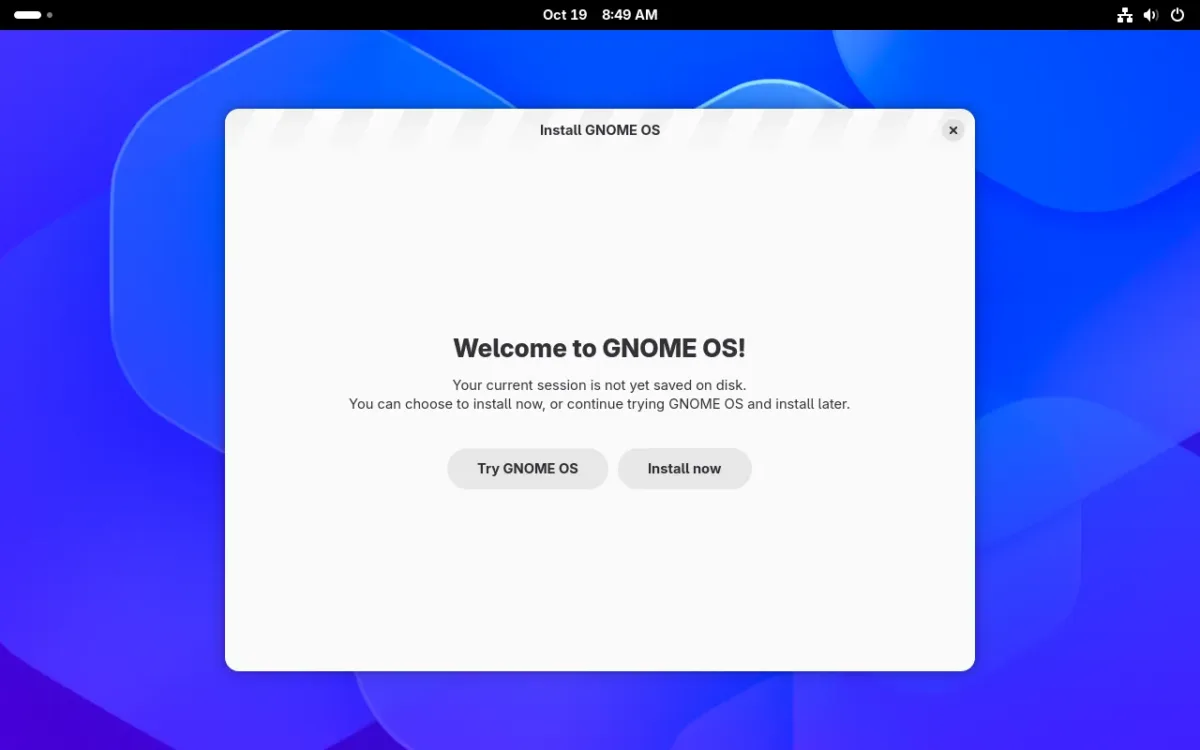
The installer welcome window in the live session. Screenshot from the test VM.
"Install now" opens a disk chooser. It listed the 40 GB virtual disk and the DVD-ROM, with the DVD-ROM marked as not selectable. Pressing "Install" started the installation at once. There was no confirmation screen about erasing the disk.
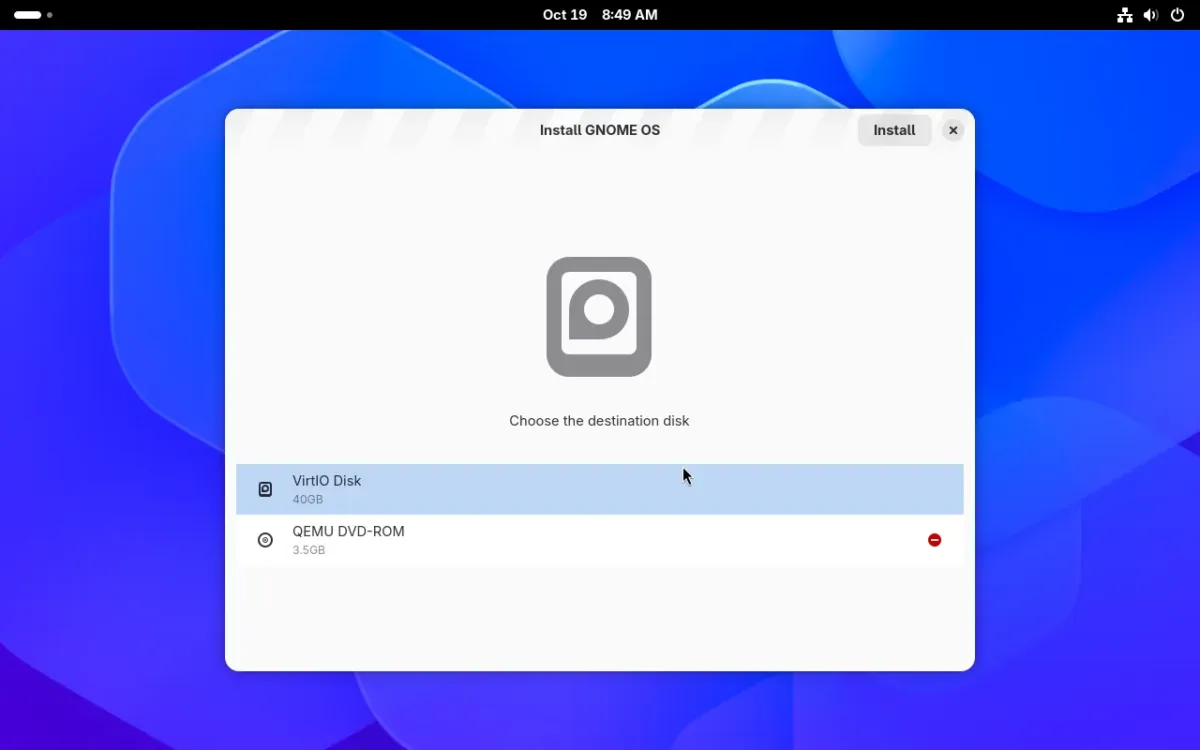
Choose the destination disk. The next click starts the install.
The installer log, which survives in the system's journal, shows what happened next. At 08:50:04 systemd-repart reported "Wiped block device" and "Discarded entire block device", then wrote six partitions. It copied the 3.2 GB system image in 11.4 seconds and the partition table was written 15 seconds after the start. The journal shows the ISO's loop devices detaching at 08:52:16, so the whole install took roughly two minutes. The test disk was blank, so this does not prove what it does with an existing partition. The official guide tells you to erase a disk that holds data before you install, so assume the installer takes the whole disk.
The guide also says a recovery key appears if your data is encrypted. None appeared in the test and the journal has no encryption or TPM entries. That matches a VM without a TPM. On a machine with one, the result may differ.
What you get after the install
After the install the VM booted from disk to the login screen in under a minute. systemd-analyze reported 19.0 seconds (0.6 s kernel, 1.7 s initrd, 16.7 s user space) once the firmware had handed over. The desktop used about 1.25 GB of the 3.9 GB of RAM right after login with nothing else open. Those are VM numbers.
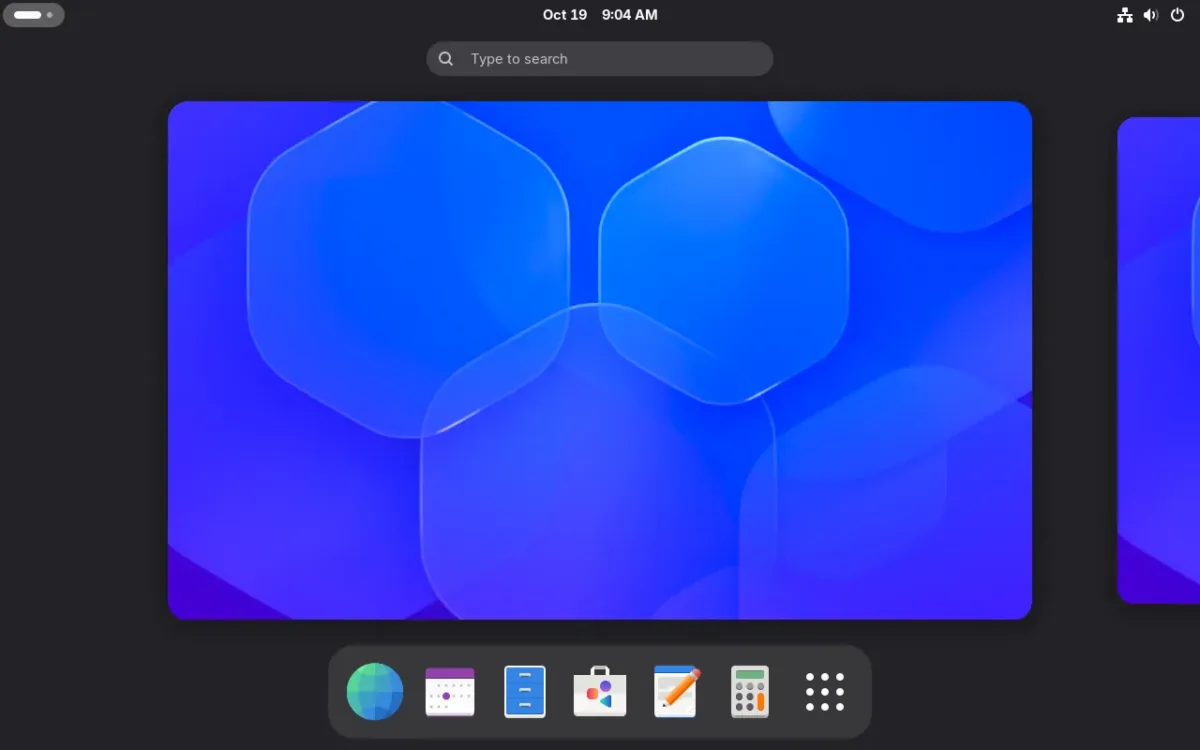
The installed system after login: the Activities overview and the default dock.
| Component | Version in the test |
|---|---|
| GNOME Shell | 51.1 |
| Linux kernel | 7.2.6 |
| systemd | 262 |
| Flatpak | 1.18.4, with Flathub already added for the whole system |
| Podman | 6.1.0 (plus toolbox 0.3 and distrobox 1.8.2.5) |
| Python and git | 3.14.7 and 2.55.0 |
| Browser | GNOME Web (Epiphany), no Flatpak apps preinstalled |
The base install already includes the usual GNOME apps (Files, Web, Console, Software, Text Editor, Calendar, Contacts, Maps, Weather, Music, Video Player, Image Viewer, Disks, Logs, System Monitor, Settings, Help, Boxes and Builder) plus several developer demos. flatpak list was empty, so those apps are part of the image and not Flatpaks.
The disk layout is the interesting part
The installer created six partitions on the 40 GB disk. The system image sits in a pair of slots, labelled A and B, so an update can be written to the slot you are not using.
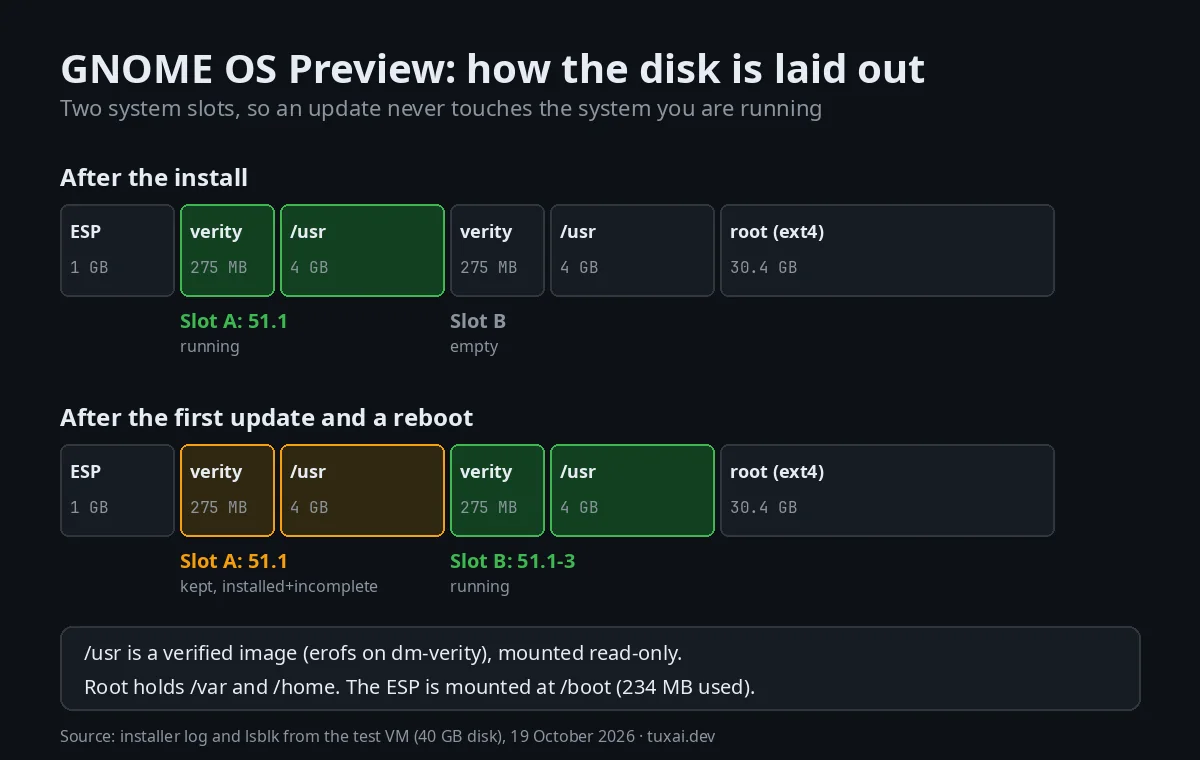
Partition layout from the installer log and lsblk. Before the update slot A runs 51.1; after it slot B runs 51.1-3.
| Partition | Size | What it holds |
|---|---|---|
| vda1 | 1 GB | Boot partition (EFI), mounted at /boot. 234 MB used after install |
| vda2 and vda3 | 275 MB and 4 GB | Slot A: integrity data (dm-verity) and the /usr image |
| vda4 and vda5 | 275 MB and 4 GB | Slot B: the same pair, empty after the install |
| vda6 | 30.4 GB | Root filesystem (ext4): /var, /home, your data. 350 MB used right after install |
/usr is mounted from a verified image (erofs on dm-verity) and is read-only. In the test touch /usr/test returned "Read-only file system". /usr showed 3.3 GB used and 100% full, which is expected for a fixed image. /etc is a configuration extension layered over the image.
What is not there
The base system has no package manager. This is what command -v found:
| Tool | On the host |
|---|---|
| apt, dpkg, dnf, rpm, pacman, zypper, nix, apk, emerge | Not installed |
| docker, buildah | Not installed (Podman is) |
| gcc | Not installed until you enable the developer extension |
| flatpak, podman, toolbox, distrobox, skopeo, systemd-nspawn | Installed |
| git, curl, vim, nano, python3, ssh | Installed |
How updates work on GNOME OS
GNOME OS updates the whole system image with systemd-sysupdate, and updatectl is the command you use. It lists versions, downloads a new one into the unused slot, and the next reboot switches slots. The update does not touch the system you are running.
The ISO is already behind
Right after the install, updatectl list host showed this:
updatectl list host

  VERSION    STATUS
  empty      installed+incomplete
  51.rc-2    available
  51.beta-31 available
  51.1-3     candidate
  51.1-2     available
  51.1-1     available
● 51.1       current
  51.0-9     available
  ... (older builds)
The system installed from the 51.1 ISO was three builds behind (51.1-1, 51.1-2 and 51.1-3) the day the ISO was downloaded. The empty row is slot B, ready for the first update. Running the update took 59 seconds with updatectl update. It asked for no password in the graphical session, and the network counter showed about 3.3 GB received since boot, nearly all of it this update. The project lists delta updates as future work, so each update today is a whole image.
After a reboot the system reported image version 51.1-3 and /usr was now on the other pair of partitions (vda4 and vda5). The list changed like this:
updatectl list host

  51.rc-2    available
  51.beta-31 available
● 51.1-3     current
  51.1-2     available
  51.1-1     available
  51.1       installed+incomplete
  51.0-9     available
  ... (older builds)
The old 51.1 stays installed in slot A. It is marked installed+incomplete. The test did not check why it is marked incomplete, and it does not show whether that version still boots.
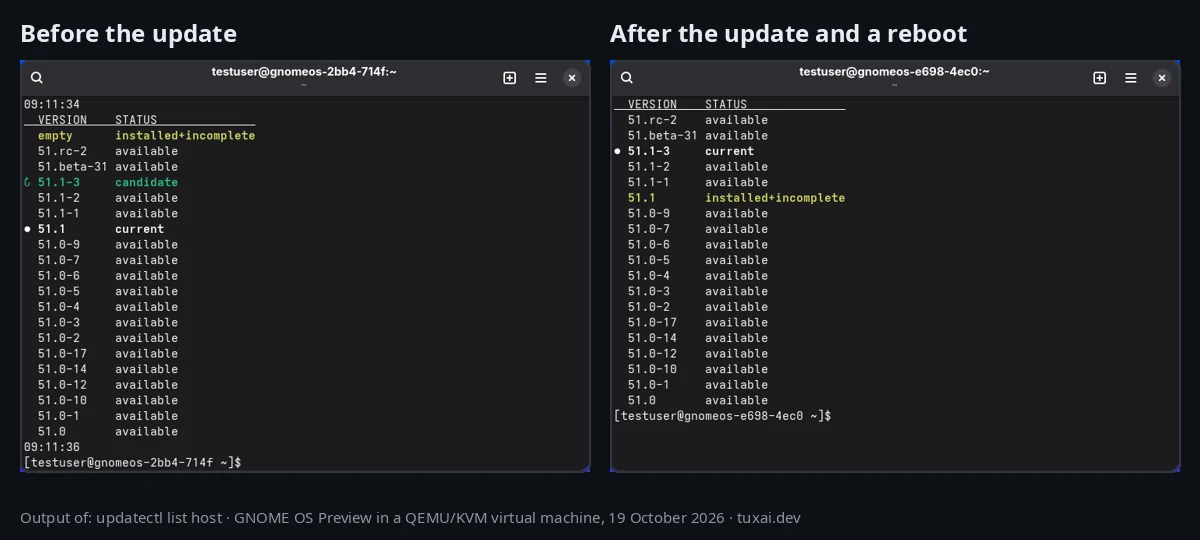
The same command before and after the first update, from the test VM.
Updates also run on their own
The system ships an automatic update timer. Its configuration, read from systemd-sysupdate-update.timer, starts 15 minutes after boot, repeats every 2 hours, adds a Saturday run and a random delay of up to 4 hours. The service runs systemd-sysupdate update --component-all --cleanup=yes. The test read the configuration but did not see a scheduled run, so how often it installs in practice is not measured.
Which actions asked for a password
| Action | Result |
|---|---|
updatectl list host | No prompt |
updatectl update | No prompt |
updatectl enable --now devel | Password: "Authentication is required to manage optional features" |
| The same commands over SSH | Denied: "requires interactive authentication" |
systemctl reboot over SSH | Denied for the same reason |
Firmware updates and the TPM (documented, not tested)
The user guide says that before you apply a firmware update you should unlock the firmware PCR values:
run0 /usr/lib/systemd/systemd-pcrlock unlock-firmware-code
run0 /usr/lib/systemd/systemd-pcrlock unlock-firmware-config
If the system asks for the disk passphrase after a firmware update or a UEFI reset, the guide gives a longer sequence to re-enroll the TPM2. It is manual today, and the project lists a graphical recovery tool as unfinished. The VM had no TPM, so none of this ran. If you plan to use encryption with the TPM, read how LUKS works first and keep the recovery key somewhere safe.
Rolling back
The user guide says the system keeps two versions. To go back, press any key during boot to open the boot menu and pick the older entry. Repeated attempts to open that menu with simulated key presses in the VM failed, so rollback from the menu is not tested here. What the test did show is that the previous version stays installed after an update.
How to install software on GNOME OS
There are three ways, and none of them is a package manager. For the differences between the formats, see Snap vs Flatpak vs AppImage.
Flatpak apps
Graphical apps come from Flathub, which is already configured for the system. Installing Loupe (the GNOME image viewer, 15 MB) from a terminal with flatpak install -y flathub org.gnome.Loupe took 28 seconds and asked for no password. It was seven packages, because nothing was installed yet. These were the largest:
| Package | Installed size |
|---|---|
| org.gnome.Platform runtime | 1.1 GB |
| org.freedesktop.Platform.GL.default | 469.9 MB |
| org.freedesktop.Platform.codecs-extra | 45.6 MB |
| org.gnome.Loupe | 15.1 MB |
The first Flatpak app costs about 1.6 GB of disk, because it brings the runtime with it. The next apps that use the same runtime are far smaller. On a small disk, plan for that.
Containers with distrobox
For command-line tools and other distributions, distrobox and toolbox are included. This created an Ubuntu 24.04 container and installed a compiler inside it with apt:
distrobox create --yes --name ubu --image docker.io/library/ubuntu:24.04
distrobox enter ubu -- sudo apt-get update
distrobox enter ubu -- sudo apt-get install -y gcc
Creating the container took 4 seconds. The first distrobox enter (which sets up the container), the apt-get update and the gcc install together took under two minutes. Inside the container, gcc --version reported gcc 13.3.0 from Ubuntu 24.04.5. The host still had no gcc.
System extensions
The third way is built into the update system. updatectl features lists six optional features, all off by default:
| Feature | What updatectl says it is |
|---|---|
devel | Development files |
codecs-extra | Codecs extra |
nvidia-driver | NVIDIA proprietary GPU driver |
snapd | Support for snap app packages |
apparmor | AppArmor support |
debug | Debug info files |
The user guide shows how to enable devel, codecs-extra, nvidia-driver and snap support (snapd with apparmor). Only devel was tested.
Enabling it did not go smoothly the first time. updatectl enable --now devel ended with "Connection timed out" after 36 seconds, and the feature flag was set but /var/lib/extensions was empty. A plain updatectl update then downloaded and merged the extensions in 56 seconds. The result was a 2.0 GB devel image and a 220 MB codecs-extra image under /var/lib/extensions, overlaid read-only on /usr. The host then had gcc 16.2.0, g++, make, gdb, cmake, meson, flatpak-builder and pkg-config on its path.
One oddity from the test: codecs-extra showed as enabled in updatectl features without being asked for. What turned it on was not found.
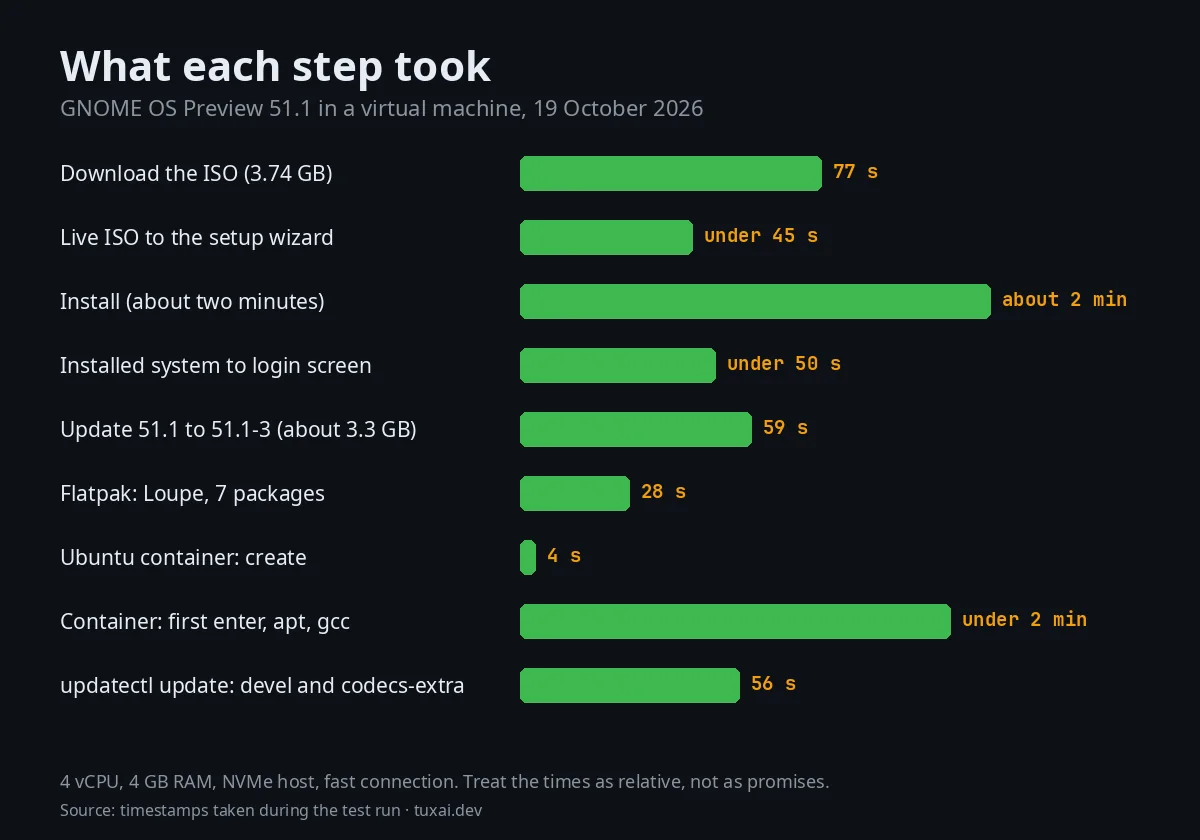
What each step of the test took, in a VM on a fast connection.
What is still missing before it is stable
Vovk's announcement lists the work the project still wants to do. In plain terms:
| Missing today | What it means for you |
|---|---|
| A full installer | The current one is a placeholder. It worked in the test and has no options (no partitioning, no confirmation) |
| Delta updates | Every update downloads a whole image. In the test that was about 3.3 GB |
| systemd-homed across the system | Per-user disk encryption is planned, not done. In the test homectl listed no home areas |
| Better TPM integration | Re-enrolling the TPM after a firmware update is manual |
| ARM and phone support | The docs call phone support experimental (OnePlus 6, Fairphone 5) |
| Preinstalled apps as Flatpaks | The default apps are part of the image today |
| A clear upgrade path to Stable | The reason the project says you may have to reinstall in a few years |
Is GNOME OS Preview right for you?
It depends on what you want from an image-based system. The table compares the options this site covers.
| GNOME OS Preview | Vanilla OS 3 | KDE Linux | |
|---|---|---|---|
| Update model | Whole /usr images in two slots, with systemd-sysupdate | Two full root partitions swapped by ABRoot, updates as OCI images | One read-only image |
| Adding apps | Flatpak, containers, optional system extensions | Apx installs into containers | Many apps come as Flatpaks |
| Desktop | GNOME 51.1 | GNOME 50 | KDE Plasma |
| Where it stands | Preview, no promise of long support | Released 1 September 2026 | Testing edition only |
Install GNOME OS Preview in a virtual machine first if you only want to look at it. It is a good way to see the upstream GNOME desktop with no distribution changes, and to watch how an image-based update works. Choose something else if you want a computer that needs no attention. The project itself says "this is not for you yet" to anyone who will not reinstall in a few years.
For more image-based and non-mainstream systems, see the list of independent Linux distros, or how NixOS handles the same problem with a declarative configuration.
Troubleshooting GNOME OS Preview: common problems and questions
Is GNOME OS Preview stable enough for daily use?
The project says it is more stable than Nightly but it is not declared Stable and had a few weeks of real-world testing at launch. It will probably be supported for a few years, and you may have to reinstall to move to Stable. Use it on a spare machine or a virtual machine first.
Where do I download GNOME OS Preview?
From os.gnome.org. The Preview x64 ISO is at https://os.gnome.org/download/stable/51/gnome_os_x86_64.iso. The Nightly ISO is a different file, meant for GNOME developers. The page shows no checksum, so compare yours with the hash in this guide if you downloaded the same build.
Can I run GNOME OS Preview in VirtualBox or GNOME Boxes?
The official page names GNOME Boxes, and only the Flathub version. QEMU with KVM and UEFI also ran it in the test, using the options shown above. VirtualBox was not tried, and UEFI needs to be on in whatever hypervisor you use.
Does GNOME OS have a package manager?
No. The base system has no apt, dnf or pacman. You install graphical apps with Flatpak, run other distributions' tools in containers with distrobox or toolbox, and add system-level tools such as compilers with optional system extensions through updatectl enable.
How do I go back to the previous version after a bad update?
The user guide says the system keeps two versions and you can pick the older one in the boot menu by pressing any key during boot. The test could not open that menu with simulated key presses, so it was not verified. After an update, updatectl list host showed the old version still installed.
updatectl enable --now devel ends with "Connection timed out". What now?
Run updatectl update. In the test the first command set the feature flag but timed out before the 1.7 GB download finished, and updatectl update then completed it. This happened once, so the cause is not confirmed. If it fails again, check the network and try again.
How is GNOME OS different from GNOME on Ubuntu or Fedora?
Ubuntu and Fedora build GNOME as packages on their own base system and update it package by package. GNOME OS ships GNOME and the whole base as one image that the GNOME project builds itself from its gnome-build-meta files. It has no package manager and updates by replacing the image.
Will my NVIDIA card work on GNOME OS?
Not tested. The user guide offers an nvidia-driver extension (updatectl enable --now nvidia-driver, then reboot) and says it supports "RTX 1600/2000 series or newer" cards. Without it the open-source drivers have subpar performance and no CUDA, according to the same page.
Sources and further reading
Facts about the project come from these pages, read on 19 October 2026. Everything labelled as tested comes from the VM run described above.
- Introducing GNOME OS Preview, Adrian Vovk, 16 October 2026
- GNOME OS, installation guide and user guide
- LWN: Introducing GNOME OS Preview
- Phoronix: GNOME OS Preview announced
- gnome-build-meta, the BuildStream project behind GNOME OS
On this site: Independent Linux Distros, Vanilla OS 3 Reunion, KDE Linux, Snap vs Flatpak vs AppImage, Linux in VirtualBox, LUKS disk encryption.

JM Carreira
I’ve used Linux since 2008 and it has been my main system since 2021. When an article has a “Tested on” box, I ran the steps on my Lenovo Tiny. More about me and the test machine.