
Pika OS: The Debian Gaming Linux for Windows Switchers, Complete 2026 Guide

✅ Checked against the official PikaOS site and docs · Last updated: 16 October 2026
Pika OS in short
- What it is: Pika OS is a free, rolling Linux distribution for gaming, built on Debian Sid (not Ubuntu). The current release is PikaOS 4.0, with GNOME, KDE Plasma, COSMIC, Hyprland and Niri editions.
- A good fit if: your CPU is Intel Haswell or newer, or AMD Ryzen or newer, and you play on a recent AMD, Intel or NVIDIA graphics card.
- Look elsewhere if: your CPU is older (it will not boot), you need Secure Boot on without extra work, or you want a slow LTS or image-based rollback. Ubuntu and Bazzite cover those.
Start with the CPU check, because it decides everything else.
Pika OS (written PikaOS by the project) is a free, rolling Linux distribution for gaming and content creation, built on Debian Sid plus the Deb Multimedia repository, with its own performance kernel, its own graphics driver stack and in-house tools such as the Pikman package manager. The current images are PikaOS 4.0 builds dated 20 August 2026, offered with GNOME, KDE Plasma, Hyprland, Niri or COSMIC.
If an older review calls it "Ubuntu-based", that is out of date. Pika OS 4 follows Debian's unstable branch, which changes how updates, drivers and package sources work. This guide covers which ISO to pick, whether your CPU can run it, how to install it, and how to set up Steam, NVIDIA drivers and the performance tools that actually ship in its repositories.
- Pika OS at a Glance
- What Is Pika OS Based On?
- Who Pika OS Is For, and Who Should Pick Something Else
- Hardware Requirements: Check Your CPU First
- Which Pika OS ISO Should You Download?
- Download, Verify and Write the USB
- How to Install Pika OS
- First Boot: Update with Pikman
- Gaming Setup: Steam, Proton and GE-Proton
- Non-Steam Games: Epic, GOG, Battle.net and Others
- Performance Tools: MangoHud, falcond, falcon and GameMode
- Kernel and Scheduler Options
- NVIDIA on Pika OS
- AMD and Intel Graphics
- Installing Other Software
- Pika OS vs Nobara, Bazzite, CachyOS and Ubuntu
- Troubleshooting Pika OS: Common Problems and Questions
- What is PikaOS based on?
- Is Pika OS Debian or Ubuntu?
- Is Debian a good choice for gaming?
- Does Pika OS run on older CPUs?
- Is Pika OS a rolling release?
- Is PikaOS good for gaming?
- Which is better, PikaOS or CachyOS?
- PikaOS or Nobara: which should I choose?
- Is there a COSMIC edition of Pika OS?
- What are the Pika OS system requirements?
- The USB fails with "invalid key" or "secure boot violation"
- NVIDIA driver broken after a kernel update
- Black screen or stuck at the login screen
- Games stutter on an AMD GPU
- Game crashes with a "missing Vulkan" error
- Controller not detected
- Can I roll back a bad update?
- Where do I get help?
- What to Do Next
- Sources
Pika OS at a Glance
The short version, taken from pika-os.com and the official wiki:
| Item | Pika OS 4 |
|---|---|
| Base | Debian Sid (unstable) plus Deb Multimedia, with a few packages from Debian Experimental |
| Release model | Rolling. New ISOs are snapshots; installed systems get the same changes through updates |
| Latest ISO | PikaOS 4.0 "Nest", build 26.08.20 (20 August 2026) |
| Kernel | Custom build with CachyOS patches and switchable sched_ext (SCX) schedulers |
| Editions | GNOME, KDE Plasma, Hyprland, Niri, COSMIC, each as Standard ISO and NVIDIA ISO |
| Package tools | Pikman (APT, Flatpak, and Arch, Fedora or Alpine containers through APX), plus the Pikman Update Manager GUI |
| CPU requirement | x86-64-v3: Intel Haswell or newer, AMD Ryzen or newer |
| Compiler flags | Base repositories rebuilt with O3, LTO and x86-64-v3 |
| Filesystems | XFS (installer default), Btrfs, ext4 |
| Bootloader | rEFInd instead of GRUB, booster instead of mkinitramfs |
| Secure Boot | Off to install; self-signing with sbctl is possible later |
| Download | pika-os.com/#editions, with an .md5 checksum next to each ISO |
What Is Pika OS Based On?
Pika OS is based on Debian Sid, Debian's rolling unstable branch, not on Ubuntu. The home page gives the base as "Debian Sid + Deb Multimedia", and the wiki describes cherry-picked, custom compiled packages on top of it.
The packages come from several repositories, each named after a bird:
- Nest (base): Debian Sid, selected Experimental packages such as desktops, and Deb Multimedia, all rebuilt against each other with x86-64-v3, LTO and O3 so the mix does not break ABI compatibility.
- Raven and Pigeon (graphics and compute): a modified AMDGPU stack, AMD AMF, and versioned ROCm, oneAPI and CUDA stacks.
- Parrot (third-party sync): Steam, VS Code, Discord, Brave, Floorp, Mullvad and ProtonVPN, synced from their vendors.
- Cockatiel (custom): Pika's own packages and newer builds of Mesa, the kernel, OBS Studio, Blender, Lutris, MangoHud, Gamescope and wine-staging.
Pika also replaces several Debian defaults: rEFInd for GRUB, booster for mkinitramfs, tuned for power-profiles-daemon, and the CachyOS kernel patch set for Debian's. Mouse acceleration is off by default on every desktop. In August 2026 the team also published 50 patches to APT and 13 to dpkg, and its own benchmark reports apt update running 18% faster.
Who Pika OS Is For, and Who Should Pick Something Else
Pika OS suits people with a reasonably modern PC who want current drivers and gaming tools without assembling the system themselves. It is a poor match for old CPUs, for anyone who needs Secure Boot on, and for people who want the whole OS to roll back in one step.
| Your situation | Good fit? | Why |
|---|---|---|
| Windows switcher with a recent AMD, Intel or NVIDIA RTX GPU | Yes | Separate NVIDIA ISO, current Mesa, a one-click gaming package and GUIs for drivers and kernels |
| Streamer or 3D artist | Yes | OBS with game capture and stream keys, Blender with CUDA, OptiX, HIP, HIPRT and oneAPI |
| CPU older than Intel Haswell or AMD Ryzen | No | The x86-64-v3 build will not boot. Use Ubuntu or another generic x86-64 distro |
| You need Secure Boot on (anti-cheat in a Windows dual boot, company policy) | With extra work | No Microsoft-signed key. Install with Secure Boot off, then enroll your own keys |
| You want image-based updates and easy rollback | Better elsewhere | Bazzite keeps the previous OS image and lets you pick it at boot |
| You want Arch and pacman | Better elsewhere | CachyOS offers a similar tuned kernel and packages on Arch |
| You want a slow, predictable LTS for work | No | Pika follows Sid by design. Ubuntu LTS comes every two years with five years of standard security maintenance |
Hardware Requirements: Check Your CPU First
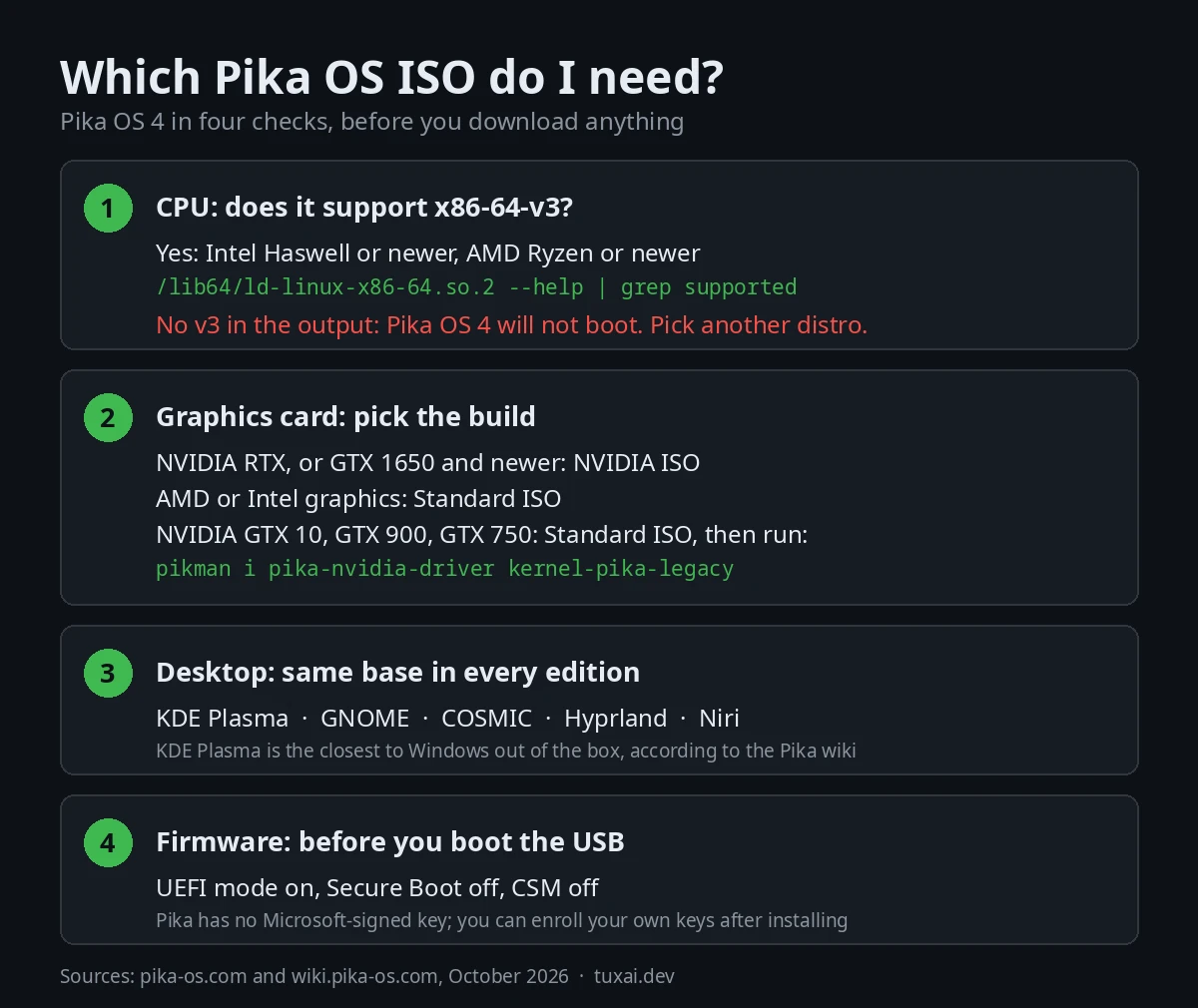
The CPU is the one hard requirement. According to the Pika OS FAQ, version 4 supports Intel Haswell or newer and AMD Ryzen or newer, and anything older fails to boot because the system is built for x86-64-v3. The packages use AVX2 and related instructions, so a pre-Haswell Intel or an AMD FX chip cannot run them at all.
From any Linux live USB, check your CPU level with the glibc loader:
/lib64/ld-linux-x86-64.so.2 --help | grep supportedIf you see x86-64-v3 (supported, searched), Pika OS will run. If v3 is missing, pick another distro.
The firmware must boot in UEFI mode with Secure Boot and CSM disabled. Your graphics card decides which ISO you download. The site and wiki give no minimum RAM or disk size, so we will not invent one; the wiki's Windows dual boot example uses a 50 GB partition.
Which Pika OS ISO Should You Download?
Pick a desktop, then the Standard or NVIDIA build for your graphics card. Every edition shares the same base.
| Edition | Type | Best for |
|---|---|---|
| KDE Plasma | Desktop environment | Windows switchers. The wiki calls it the most Windows-like out of the box |
| GNOME | Desktop environment | A calm, low-maintenance desktop, closest to macOS |
| COSMIC | Desktop environment | System76's Rust desktop with tiling and workspaces |
| Hyprland | Tiling compositor | Keyboard users who like animations and theming and edit config files |
| Niri | Scrollable tiling compositor | Keyboard-first work, windows laid out on an endless horizontal strip |
- NVIDIA ISO: RTX cards and the GTX 1650 or newer.
- Standard ISO: Intel or AMD graphics, and NVIDIA cards up to the GTX 1080 Ti. GTX 10 and 900 owners add the legacy driver after installing (see the NVIDIA section).
File names look like PikaOS-Nest-NVIDIA-KDE-4.0-amd64-v3-26.08.20-4.iso. The v3 is the CPU level above.
Download, Verify and Write the USB
Download from the editions section of pika-os.com and compare the MD5 checksum before writing the stick. Each ISO link has a .md5 file at the same address.
cd ~/Downloads
md5sum PikaOS-Nest-KDE-4.0-amd64-v3-26.08.20-4.iso
If the strings differ, download the file again. For the USB, the wiki lists Rufus (Windows), balenaEtcher (Windows, macOS, Linux), Popsicle, Fedora Media Writer, GNOME Disks and EtchDroid (Android). Ventoy works if you keep the original ISO name in the root of a non-NTFS partition labelled Ventoy. On Linux, dd also works; check the device with lsblk first, because it erases the target without asking:
sudo dd if=PikaOS-Nest-KDE-4.0-amd64-v3-26.08.20-4.iso \
  of=/dev/sdX bs=4M status=progress conv=fsync
How to Install Pika OS
Pika uses its own installer, not Calamares, and an automatic install takes a few screens. Back up first: automatic partitioning wipes the whole disk.
- Firmware: disable Secure Boot and CSM and set the boot mode to UEFI.
- Boot the USB: wait for the bird logo and press Enter. On MSI boards and laptops, go to Advanced Options first and pick BOOTX64 Mode (MSI Compatibility Mode).
- Start the installer: choose Install Distro to System, then language, keyboard and time zone.
- Partitioning: pick "Automatically Partition The Drive" and click the yellow box to select the target disk.
- Confirm: check the summary and press Confirm & Install PikaOS.
- Reboot: remove the USB, press Enter at the bird logo, and complete the first boot wizard (Lets Start). Reboot again when it asks.
Pika Hub and Pika Welcome open after that last reboot. Since the 4 April 2026 ISO the installer defaults to XFS, which the project adopted as a trial to reduce filesystem and drive problem reports. Choose Btrfs if you want snapshots.
Dual Booting with Windows
Shrink C: in Windows Disk Management, shut Windows down, then choose "Manually Partition the Drive" in the installer. In the free space the wiki creates a 512 MiB EFI partition, a 1024 MiB ext4 boot partition and a root partition on XFS (recommended), ext4 or Btrfs, plus an optional separate home. On Btrfs, use one partition with the subvolumes @, @home, @var, @log and @snapshots. rEFInd lists both systems at boot. Our Linux and Windows 11 dual boot guide covers the Windows side.
First Boot: Update with Pikman
Update before you install anything. Pika Welcome's Update My System button opens the Pikman Update Manager, or use a terminal. Pikman asks for your password when it needs root, so do not put sudo in front of it:
# Refresh package lists and apply all system updates
pikman upgrade

# Update Flatpak apps (Pikman uses "update" here, like flatpak)
pikman --flatpak update
Pikman is a front end, not a new package format: native software is still Debian packages handled by APT and dpkg.
| Command | What it does |
|---|---|
pikman search fish | Searches the Pika repositories |
pikman install fish (or pikman i) | Installs a package; it shows up in your app launcher |
pikman remove fish | Removes a package (purge removes it fully) |
pikman --aur init | Creates an Arch container (also --fedora, --alpine) |
pikman --aur install youtube-music | Installs an AUR package in that container; export adds it to the launcher |
The Update Manager shows APT and Flatpak updates separately and has an APT Settings page for mirrors, third-party sources and scheduled update checks. Pika Welcome also installs codecs (FFmpeg, VA-API and more) and printer support, which is left out by default.
Gaming Setup: Steam, Proton and GE-Proton
Steam is one install away. In Pika Welcome, Recommended Additions has a one-click PikaOS Game Utilities option that installs pika-gameutils-meta. The terminal equivalent:
pikman install pika-gameutils-metaAccording to its entry on packages.pika-os.com, the current version pulls in:
- Launchers: Steam, Lutris, Heroic Games Launcher, Faugus Launcher and umu-launcher
- Compatibility: Wine, wine-staging, Winetricks and ProtonPlus (to add GE-Proton and similar builds)
- Overlays and effects: MangoHud, GOverlay, vkBasalt and Gamescope
- Pika tools: falcon, falcond, falcond-gui and the NVIDIA DLSS Switcher
Sign in to Steam and Proton runs most Windows games. To force a Proton build for one game, open its Properties and pick a tool under Compatibility. For GE-Proton, install it from ProtonPlus, restart Steam and select it there. Check ProtonDB before buying, especially for games with kernel-level anti-cheat. Our Steam and Proton guide goes deeper.
Non-Steam Games: Epic, GOG, Battle.net and Others
Heroic and Lutris come with the gaming package. Use Heroic for Epic Games Store and GOG libraries. Use Lutris and its community install scripts for Battle.net, EA App and Ubisoft Connect. Faugus Launcher and umu-launcher cover other Windows games you want to run with Proton outside Steam.
Performance Tools: MangoHud, falcond, falcon and GameMode
Pika's answer to Feral GameMode is falcond, a daemon that spots running games and applies a per-game profile on its own, with nothing to add to launch options.
falcond can switch to a performance profile, manage AMD 3D V-Cache, and pick a sched_ext scheduler per game (bpfland, lavd, rusty or flash in the global config), with modes for desktops, handhelds and HTPCs. Global settings live in /etc/falcond/config.conf; your own game profiles go in /usr/share/falcond/profiles/user/. The rewritten falcond 2 arrived with the April 2026 ISOs.
falcon is the manual tool. It pins a game to your best cores (preferred cores on AMD, P-cores on hybrid Intel chips) and sets the performance profile:
# Steam launch options
falcon %command%

# With the MangoHud overlay
falcon mangohud %command%
MangoHud shows FPS, frame times and temperatures with mangohud %command%; GOverlay configures it with a GUI. GameMode is not in the gaming package, but pikman install gamemode adds it if a game asks for gamemoderun %command%. Try falcond alone first, since stacking tools makes it hard to see which one helped.
Kernel and Scheduler Options
Pika maintains its own kernel, kept close to upstream stable with the CachyOS patches on top, and manages it with the Pika Kernel Manager GUI. It shows your running version next to the newest one, installs other versions (packages are named like linux-image-<version>-pikaos), and has an SCX page for changing the CPU scheduler. The scx tools and ananicy-cpp are installed by default. If a new kernel misbehaves, press Tab in rEFInd and boot an older one.
NVIDIA on Pika OS
NVIDIA drivers on Pika OS come from Pika's own packages and the Pika Device Manager, not ubuntu-drivers.
With an RTX card or a GTX 1650 or newer, install from the NVIDIA ISO and the driver is already there. Older cards use the Standard ISO and a legacy driver. The table shows which one fits your card:
| Your graphics card | ISO to download | Driver |
|---|---|---|
| NVIDIA RTX, or GTX 1650 and newer | NVIDIA ISO | Already installed. Change profile later in the Pika Device Manager |
| NVIDIA GTX 10 (Pascal), GTX 900 and GTX 750 (Maxwell), TITAN V (Volta) | Standard ISO | 580 legacy driver, installed after the first boot (command below) |
| AMD or Intel graphics | Standard ISO | Mesa, with a one-click switch between Stable and Git |
The Device Manager offers these profiles:
- Nvidia Open: open kernel modules, GTX 16 series onward.
- Nvidia Closed: proprietary modules for cards before the RTX 50 series.
- Specific versions: drivers from the 550 branch onward, beta and new-branch builds included. Experimental ones are labelled and never default.
- Nouveau: remove the NVIDIA profiles and use the Mesa ones.
The wiki warns that an older driver may need an older kernel, and a mismatch can cause kernel panics and an unbootable system.
GTX 10, GTX 900 and Other Older NVIDIA Cards
Pascal (GTX 10, MX150 to MX350), Maxwell (GTX 900, GTX 750 and 750 Ti) and Volta (TITAN V) cards use Pika's 580 legacy driver, which brings a matching legacy kernel. Install from the Standard ISO, then in the post-install setup stage, online, run:
pikman upgrade
pikman i pika-nvidia-driver kernel-pika-legacy
The wiki notes the password at that stage is pikaos. After a reboot, nvidia-smi should report a 580.xx driver. On hybrid laptops, prime-run %command% in Steam launch options runs a game on the NVIDIA GPU, and KDE Plasma gets a GPU selector.
AMD and Intel Graphics
AMD and Intel GPUs use Mesa, and the Device Manager switches between Mesa Stable and Mesa Git in one click. AMD owners can also install AMD's proprietary stack there. The repositories carry AMF for hardware encoding, ROCm for compute, LACT and CoreCtrl for GPU tuning, and amdgpu is enabled for older Southern Islands and Sea Islands cards.
Installing Other Software
Use Pikman for native packages, Flatpak for sandboxed apps, and containers for software that only exists on another distro. Run pikman search before adding any repository, since Steam, VS Code, Discord and Brave are already synced.
Third-party Debian setup scripts often detect the codename pika, which no vendor supports. The wiki's fix is to pass a Debian codename yourself, preferably sid, or trixie if there is no Sid branch:
curl -1sLf \
  'https://dl.cloudsmith.io/public/coolercontrol/coolercontrol/setup.deb.sh' \
  | sudo -E distro=debian codename=trixie bash
Add only sources you trust; the Update Manager's APT Settings page lets you edit or delete them later. Our package managers guide compares APT with dnf and pacman.
Pika OS vs Nobara, Bazzite, CachyOS and Ubuntu
All four run Steam well. The differences are the base, how updates arrive, and what your hardware must support.
| Feature | Pika OS | Bazzite | CachyOS | Ubuntu |
|---|---|---|---|---|
| Base | Debian Sid + Deb Multimedia | Fedora Atomic (KDE image built from Fedora Kinoite) | Arch Linux | Ubuntu (26.04 LTS is current) |
| Updates | Rolling, package by package | Image based; previous image stays bootable, images kept 90 days | Rolling | LTS every two years (5 years of standard security maintenance) or interim every six months (9 months) |
| Packages | Pikman (APT), Flatpak, APX containers | Flatpak from Flathub, Distrobox | pacman with CachyOS optimised repos | APT and Snap (pre-installed) |
| CPU level | x86-64-v3 required | No v3 requirement on its site | x86-64-v3 recommended; v3, v4 and Zen 4 repos | No v3 requirement on the pages we checked |
| NVIDIA | NVIDIA ISO, Device Manager, 580 legacy package | Built-in drivers; separate choice for GTX 1080 and older | Hardware detection tool (chwd) | See our Ubuntu guide |
| Secure Boot | Off to install, self-sign later | Supported | Setup guide in its wiki | See our Ubuntu guide |
| Choose it if | You want Debian with current drivers and gaming tools ready | You want SteamOS-style Gaming Mode and safe rollbacks | You want Arch with tuned packages | You want long support and the widest documentation |
Full guides: Bazzite, CachyOS, Ubuntu, or all the Linux distros we cover.
Pika OS vs Nobara
Nobara is a gaming distro built on Fedora, so the choice comes down to the base, the release model and your hardware. Both ask you to turn Secure Boot off before installing.
| Feature | Pika OS | Nobara |
|---|---|---|
| Base | Debian Sid + Deb Multimedia | Fedora, as a project independent of Fedora and Red Hat |
| Release model | Rolling | Numbered versions; you upgrade from one to the next |
| Latest ISO (16 Oct 2026) | PikaOS 4.0, build of 20 August 2026 | Nobara 44, build of 13 October 2026 |
| Editions | GNOME, KDE Plasma, COSMIC, Hyprland, Niri | Official (custom KDE), GNOME, KDE, Steam-HTPC, Steam-Handheld |
| NVIDIA | Separate NVIDIA ISO for RTX and GTX 1650 or newer | One ISO works for AMD, Intel and NVIDIA installs |
| CPU level | x86-64-v3 required | No v3 requirement on the pages we checked |
| Packages | Pikman (APT), Flatpak, APX containers | DNF with Fedora, RPM Fusion and Nobara repositories, plus Flatpak |
| Boot menu | rEFInd | GRUB |
Nobara describes itself as a hobby project for personal use, not for critical production machines. If your CPU fails the x86-64-v3 check above, or you want an edition made for a TV or a handheld, look at Nobara. If you want Hyprland, Niri or COSMIC on a rolling Debian base, stay with Pika OS.
Troubleshooting Pika OS: Common Problems and Questions
What is PikaOS based on?
PikaOS is based on Debian Sid, Debian's unstable rolling branch, plus Deb Multimedia and some Debian Experimental packages, rebuilt with O3, LTO and x86-64-v3 and extended with Pika's own repositories for drivers, gaming tools and its kernel.
Is Pika OS Debian or Ubuntu?
Pika OS 4 is Debian; the home page even says "Debian, BTW". Guides calling it Ubuntu-based describe older versions, and Ubuntu tools such as ubuntu-drivers or PPAs do not apply.
Is Debian a good choice for gaming?
It can be, if the graphics stack stays current. Pika keeps Debian Sid for its huge archive and hardware compatibility, then maintains its own Mesa, NVIDIA, kernel, Gamescope, MangoHud and Wine packages so they do not wait for Debian.
Does Pika OS run on older CPUs?
Not on anything older than Intel Haswell or AMD Ryzen. Pika OS 4 needs x86-64-v3 and older chips cannot boot it. Run /lib64/ld-linux-x86-64.so.2 --help | grep supported from any live USB to check.
Is Pika OS a rolling release?
Yes. It follows Debian Sid; new ISOs are snapshots for fresh installs, and existing systems get the same changes through normal updates.
Is PikaOS good for gaming?
Yes, gaming is what Pika OS is built for, as long as your CPU supports x86-64-v3. One package, pika-gameutils-meta, installs Steam, Lutris, Heroic, ProtonPlus, MangoHud, Gamescope and the falcond auto game mode; the kernel carries the CachyOS patches; and Pika ships its own Mesa and NVIDIA packages. The costs are installing with Secure Boot off and the frequent changes of a Debian Sid base.
Which is better, PikaOS or CachyOS?
Neither is better for everyone: they serve the same kind of user on different bases. Both build for x86-64-v3 (required on Pika, recommended on CachyOS, which also offers v4 and Zen 4 repositories) and both use the CachyOS kernel patches. Choose Pika OS for Debian packages and graphical tools for drivers and kernels, and CachyOS if you want Arch and pacman; on Pika, Arch and AUR packages run inside an APX container.
PikaOS or Nobara: which should I choose?
Choose Nobara for a Fedora base with numbered releases, a single ISO for every GPU, or its TV and handheld editions. Choose Pika OS if your CPU supports x86-64-v3 and you want a rolling Debian base or the Hyprland, Niri and COSMIC editions. The comparison table above lists the differences point by point.
Is there a COSMIC edition of Pika OS?
Yes. COSMIC is one of the five Pika OS 4 editions and, like the others, comes as a Standard ISO and an NVIDIA ISO (PikaOS-Nest-COSMIC-... and PikaOS-Nest-NVIDIA-COSMIC-... on pika-os.com).
What are the Pika OS system requirements?
The firm requirements are an x86-64-v3 CPU (Intel Haswell or newer, AMD Ryzen or newer) and UEFI firmware with Secure Boot and CSM off. RTX cards and the GTX 1650 or newer need the NVIDIA ISO. The official site and wiki give no minimum RAM or disk size; the wiki's dual boot example uses a 50 GB partition.
The USB fails with "invalid key" or "secure boot violation"
Turn off Secure Boot in your UEFI settings, since Pika has no Microsoft signing key. After installing you can sign the kernel and rEFInd with your own keys using sbctl (package sbctl-booster-extra) and turn it back on, following the wiki's Secure Boot guide.
NVIDIA driver broken after a kernel update
Press Tab in rEFInd, boot the previous kernel, then fix the driver in the Device Manager. On GTX 10 series and older the usual cause is a kernel the driver does not support: run pikman i pika-nvidia-driver kernel-pika-legacy and remove the unsupported kernel in the Kernel Manager.
Black screen or stuck at the login screen
Press Ctrl+Alt+F3 for a text console. If that fails, press Tab twice in rEFInd, add a space and 3 to the end of the kernel line and press Enter to boot to runlevel 3. A broken greeter can be reset with sudo dpkg-reconfigure plus its package name.
Games stutter on an AMD GPU
Set the GPU power profile in LACT: pikman install lact, select your GPU, and on the OC tab set Performance Level to Manual and Power Profile Mode to 3D_FULL_SCREEN. Apply and reboot.
Game crashes with a "missing Vulkan" error
Reinstall the gaming package to bring the Mesa Vulkan drivers back with pikman install pika-gameutils-meta. On NVIDIA, confirm the driver loads with nvidia-smi.
Controller not detected
Install the controller and VR udev rules from Pika Welcome; the repositories also carry xpadneo and xone for Xbox pads. For Bluetooth, run sudo systemctl enable --now bluetooth and pair from settings.
Can I roll back a bad update?
Only on Btrfs with Snapper. The wiki's guide adds snapper, refind-btrfs and pika-refind-btrfs-hooks so APT changes create snapshots you can boot from rEFInd. It needs a boot partition labelled "PikaOS" and does not work with LUKS.
Where do I get help?
Check the wiki's Guides and Common Faults section, then the help forum on the official PikaOS Discord, linked from pika-os.com. Share long logs through paste.pika-os.com rather than pasting them in chat.
What to Do Next
OBS Studio from the Pika repositories includes game capture and stream-key support, and Blender ships with GPU rendering for NVIDIA, AMD and Intel. If you code on the same PC, start with our Neovim setup guide, and to run AI models on the GPU, see how to install Ollama on Linux. More reading: SteamOS guide, Debian, the base Pika builds on, and our Linux VPS comparison for servers you run alongside your desktop.
Sources
Checked on 14 October 2026. The ISO list, the Discord link and the Nobara pages were checked again on 16 October 2026.
- PikaOS official site (base, editions, ISOs)
- PikaOS wiki: FAQ, changes over Debian, which ISO, installation basics, dual boot
- PikaOS wiki tools: Pikman CLI, Device Manager, Kernel Manager, NVIDIA 580 legacy, falcond
- PikaOS wiki fixes: common troubleshooting, Secure Boot, 04/04/2026 changelog
- pika-gameutils-meta package and the PikaOS blog on APT and dpkg
- Nobara Project, Nobara downloads and the Nobara wiki
- Bazzite, CachyOS requirements, Ubuntu release cycle

JM Carreira
I’ve used Linux since 2008 and it has been my main system since 2021. When an article has a “Tested on” box, I ran the steps on my Lenovo Tiny. More about me and the test machine.