
Claude Code with tmux or Herdr: Run Several Agents at Once

Claude Code runs well in one terminal. Three or four agents in parallel, each working on a different task, need a terminal multiplexer: a tool that keeps several shells on one screen and keeps them alive when your SSH connection drops. This guide compares tmux, Zellij and Herdr for that job, gives you the commands to set up each one, and explains the one thing Herdr does that the other two do not.
If you have not installed Claude Code yet, start with How to Install Claude Code on Linux. This guide assumes the claude command already works.
- The short answer
- Comparison table
- Why run several agents at once
- Option 1: tmux
- Option 2: Zellij
- Option 3: Herdr
- Option 4: claude-tmux, a session manager for tmux
- Keyboard shortcuts cheat sheet
- Which one to choose
- Common mistakes
- Setup checklist
- Troubleshooting Claude Code in tmux and Herdr: Common Problems and Questions
- Further reading
The short answer
- tmux is the standard. It is on almost every Linux server (our complete tmux guide covers it from the start), it survives SSH disconnects, and it does nothing agent-specific. You check each pane yourself.
- Zellij is a friendlier multiplexer with a visible UI and layouts you can save in a file. It also does nothing agent-specific.
- Herdr is a multiplexer built for coding agents. It marks every pane as working, blocked or idle, so you can see which agent is waiting for you without opening each one.
If you run one or two agents, tmux is enough. If you run three or more and lose track of which one needs an answer, Herdr solves a problem the other two leave to you.
Comparison table
| tmux | Zellij | Herdr | |
|---|---|---|---|
| What it is | Terminal multiplexer | Terminal workspace with a built-in UI | Multiplexer for coding agents |
| License | ISC | MIT | Apache-2.0 |
| Written in | C | Rust | Rust |
| GitHub stars (checked 4 Oct 2026) | about 49,700 | about 35,600 | about 42,100 |
| Install on Debian/Ubuntu | sudo apt install tmux | Package or binary from zellij.dev | curl -fsSL https://herdr.dev/install.sh | sh or brew install herdr |
| Shows which agent is blocked | No | No | Yes: working, blocked, idle per pane |
| Detach and reattach | Yes | Yes | Yes, and it restores the saved layout after a machine restart |
| Official docs | tmux manual | zellij.dev | herdr.dev/docs |
| Connect to several machines | Through SSH inside tmux | Through SSH inside Zellij | Built in: saved SSH machines in one window |
| Runs Claude Code | Yes, unchanged | Yes, unchanged | Yes, it lists Claude Code among supported agents |
| Best for | Servers, scripts, people who already know it | Newcomers who want visible menus | Three or more agents, remote machines |
Herdr's own README says it does not wrap or replace the agents. It owns their terminals. Claude Code runs exactly as it does in any other terminal, and you can keep your own tmux habits if you prefer them.
Why run several agents at once
One agent works through one task. While it runs, you wait. Several agents on separate tasks let you move through a backlog faster, but only if each one has its own working directory. Two agents editing the same checkout will overwrite each other's files.
The simplest safe pattern is one git worktree per agent (our Git on Linux guide covers branches and merging):
git worktree add ../app-auth -b feature/auth
git worktree add ../app-tests -b feature/tests
Each agent then runs in its own folder, on its own branch. You merge the branches when each task is done. This matters more than the multiplexer you pick. If the agents run on a server with no desktop at all, Running AI Agents Without a GUI on Linux Servers shows the same idea with services instead of panes.
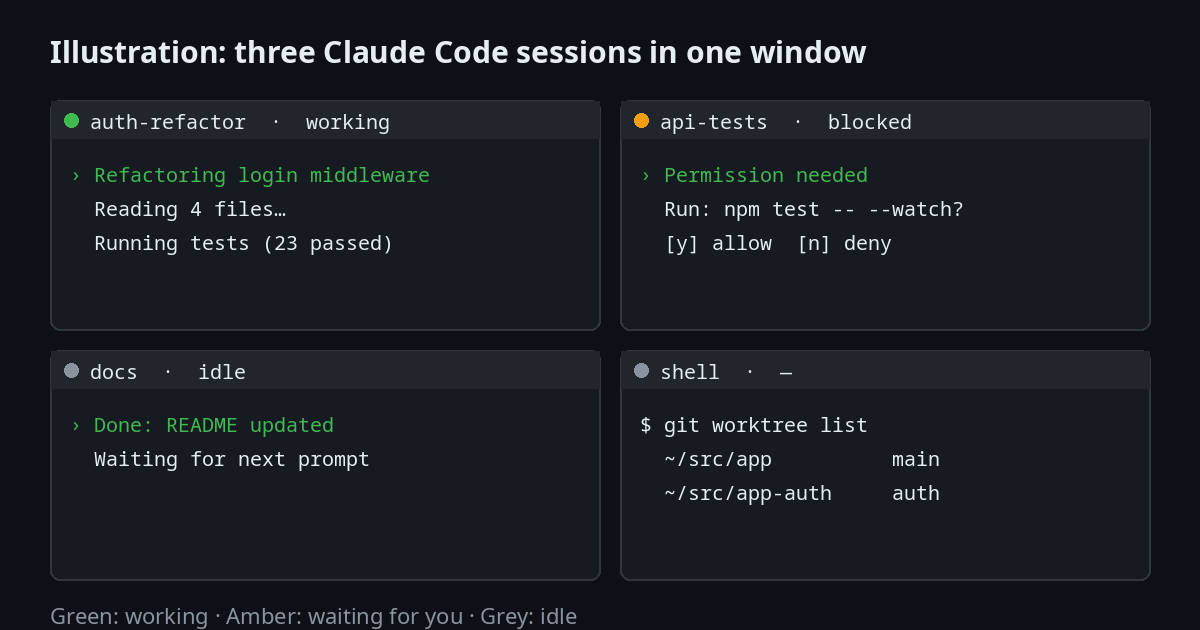
Illustration of the pane states, not a screenshot of any tool.
Option 1: tmux
tmux is the default choice on servers and the one most guides assume. Install it, start a named session, and run one claude per window. Still setting up the machine? Our guides cover Ubuntu 26.04 LTS, Fedora 44 and Arch Linux.
sudo apt install tmux          # Debian, Ubuntu, Linux Mint
sudo dnf install tmux          # Fedora
sudo pacman -S tmux            # Arch, CachyOS, Manjaro

tmux new -s agents             # start a session called "agents"
cd ~/src/app-auth && claude    # first agent, in the first window
Inside tmux, every shortcut begins with the prefix Ctrl-b. The tmux manual lists every command, and our tmux for Linux Developers guide covers sessions and configuration in depth. Press it, release, then press the next key.
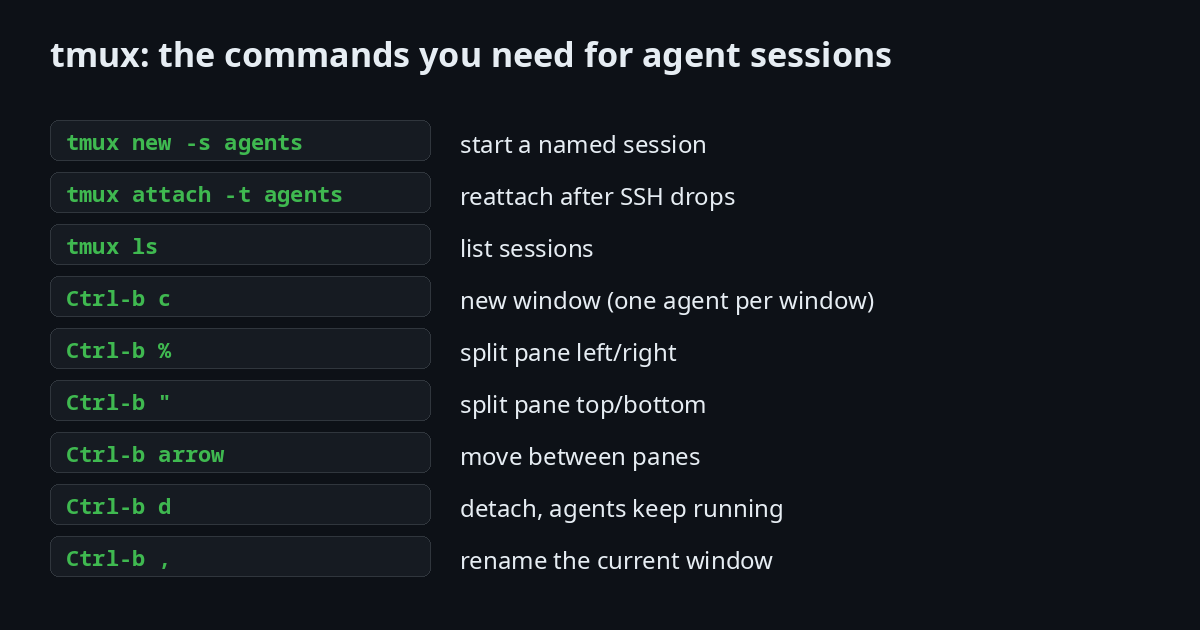
The working pattern for agents is one window per agent. Ctrl-b c opens a new window, Ctrl-b , names it, and cd into the matching worktree before you start claude. When you close your laptop, Ctrl-b d detaches and the agents keep running on the machine. tmux attach -t agents brings them back.
tmux does not know what Claude Code is doing. To see which agent is waiting for your permission, you switch windows and look. With two agents this takes a second. With five, it becomes the part you stop doing.
Option 2: Zellij
Zellij is the multiplexer to try if tmux's keyboard model feels like a wall, and if the terminal itself is still new to you. It shows its key hints on screen, and you can describe a whole workspace (tabs, panes and the commands they start) in a layout file.
zellij                         # start a session
zellij attach                  # reattach to the last session
For agents, the advantage is the layout file: one tab per repository, one pane per worktree, each pane starting claude. The limitation is the same as tmux. Zellij does not tell you which agent needs a reply. The Zellij layouts documentation explains the format, and the default configuration file shows every built-in binding.
Option 3: Herdr
Herdr is the only one of the three that understands what an agent is doing. The supported agents page explains how each agent's state is detected. Each pane is marked as one of three states:
- Working: the agent is running a task.
- Blocked: the agent has stopped and needs an answer, usually a permission prompt.
- Idle: the agent finished and is waiting for your next prompt.
You see this in the pane list without opening anything. That is the feature that changes how many agents one person can supervise.
Install
Herdr's install page and README list the ways to install it on Linux:
curl -fsSL https://herdr.dev/install.sh | sh   # official script
brew install herdr                              # Homebrew (brew.sh), also works on Linux
mise use -g herdr                               # if you use mise (mise.jdx.dev)
Then start it where the work lives:
herdr
Keys
Herdr uses the same prefix model as tmux, so the habits carry over (the quick start walks through the first session). The prefix is Ctrl-b by default. Detach with the prefix and then q, and run herdr again to reattach. Herdr is also mouse-native: you can click panes, drag split borders and use right-click menus without learning any key. The full keymap is in the Herdr keyboard docs.
Remote machines and restores
Two things set Herdr apart from tmux for people who run agents on a server:
- Detach without stopping work. Herdr keeps terminals running in a background server when you close the client or lose the SSH connection. After a machine restart it restores the saved layout and can resume supported agent sessions. The original processes do not survive a restart. The session state docs explain exactly what is restored.
- Several machines, one window. You can keep local work and saved SSH machines together, with one combined agent list and independent reconnects. The connecting machines guide shows the setup.
Plugins
Herdr has a plugin system. A plugin is a folder with a herdr-plugin.toml manifest and the commands Herdr should run. Those commands can be Bash, JavaScript, Lua or a compiled binary. Plugins can add their own actions, keybindings, panes and link handlers, and they can call the whole Herdr CLI. The plugin documentation explains the manifest format, and the marketplace lists what people have published.
Treat a plugin as ordinary code. It runs as your user, inherits your environment and can do anything you can do from the shell. Herdr does not review or sandbox it. Before you install one:
- Read the
herdr-plugin.tomlmanifest and the scripts or binaries it runs.herdr plugin installshows a preview of the commands before you confirm. - Pin a specific revision with
--refinstead of following the default branch. - Install only from authors you trust. Plugins are shared by their authors, not by Herdr.
The same caution applies to any extension you add to a shell or an editor, and it matters more here, because agents with a shell can run plugin commands too.
Herdr also exposes a CLI and a socket API. Agents can open panes, prompt each other and wait until another agent is blocked. That is an advanced use, and most people will not need it on day one.
Herdr is young. Its repository dates from March 2026, and the docs already list versions from 0.5 to 0.9.5. Check the release notes before you build a workflow around a specific command.
Option 4: claude-tmux, a session manager for tmux
If you want to stay with tmux but manage Claude Code sessions from a popup, claude-tmux adds a session list, git worktree support and pull request shortcuts inside tmux. It is a small project (about 200 stars when checked) and it is Rust under a license the repository marks as NOASSERTION, so read the license file before you depend on it.
Keyboard shortcuts cheat sheet
Each tool has its own prefix key. The tables below list the defaults as shipped. Your config can change any of them. The full lists live in each project's documentation: the tmux manual, the Herdr config reference and the Zellij keybindings page.
tmux (3.7 defaults)
The prefix is Ctrl-b. Press it, release, then press the key in the table. To send a real Ctrl-b to the program inside the pane, press it twice.
| Action | Keys |
|---|---|
| New window | Ctrl-b c |
| Next / previous window | Ctrl-b n / Ctrl-b p |
| Jump to window 0-9 | Ctrl-b 0 ... Ctrl-b 9 |
| Rename window | Ctrl-b , |
| Choose window from a list | Ctrl-b w |
| Kill window (asks first) | Ctrl-b & |
| Split left / right | Ctrl-b % |
| Split top / bottom | Ctrl-b " |
| Move to the pane in a direction | Ctrl-b then an arrow key |
| Next pane | Ctrl-b o |
| Zoom pane (toggle full screen) | Ctrl-b z |
| Kill pane (asks first) | Ctrl-b x |
| Swap pane with the previous / next | Ctrl-b { / Ctrl-b } |
| Show pane numbers | Ctrl-b q |
| Cycle through pane layouts | Ctrl-b Space |
| Copy mode (scroll and select) | Ctrl-b [ |
| Choose session from a list | Ctrl-b s |
| Detach, agents keep running | Ctrl-b d |
| Command prompt | Ctrl-b : |
| List every binding | Ctrl-b ? |
Outside the prefix, tmux ls, tmux new -s name, tmux attach -t name and tmux kill-session -t name cover the session side. tmux 3.7 has no default h/j/k/l pane movement, so use the arrow keys or add your own bind lines.
Herdr (0.9.5 defaults)
The prefix is Ctrl-b, the same as tmux. Herdr is also mouse-native, so every action below also works with the mouse.
Learn these five first
| Action | Keys |
|---|---|
| New tab | Ctrl-b c |
| Split right / split down | Ctrl-b v / Ctrl-b minus |
| Move between panes | Ctrl-b h, j, k, l |
| Workspace picker | Ctrl-b w |
| Detach, leave everything running | Ctrl-b q |
Panes
| Action | Keys |
|---|---|
| Zoom the focused pane | Ctrl-b z |
| Close pane | Ctrl-b x |
| Swap pane with the one to the left / down / up / right | Ctrl-b Shift-h / Shift-j / Shift-k / Shift-l |
| Next / previous pane | Ctrl-b Tab / Ctrl-b Shift-Tab |
| Resize mode | Ctrl-b r |
| Rename focused pane | Ctrl-b Shift-p |
| Copy mode | Ctrl-b [ |
Open pane scrollback in $EDITOR | Ctrl-b e |
| Session navigator (every agent and terminal) | Ctrl-b g |
Tabs
| Action | Keys |
|---|---|
| Next / previous tab | Ctrl-b n / Ctrl-b p |
| Jump to tab 1-9 | Ctrl-b 1 ... Ctrl-b 9 |
| Rename tab | Ctrl-b Shift-t |
| Close tab | Ctrl-b Shift-x |
Workspaces and settings
| Action | Keys |
|---|---|
| New workspace | Ctrl-b Shift-n |
| New Git worktree from the current workspace | Ctrl-b Shift-g |
| Rename / close workspace | Ctrl-b Shift-w / Ctrl-b Shift-d |
| Toggle sidebar | Ctrl-b b |
| Notification target | Ctrl-b o |
| Settings | Ctrl-b s |
| Reload config | Ctrl-b Shift-r |
| Keybinding help (lists every active shortcut) | Ctrl-b ? |
Copy mode (after Ctrl-b [): h j k l to move, w b e for words, / or ? to search, n and N to repeat, v or Space to start a selection, y or Enter to copy, q or Esc to leave.
Changing a key. Herdr reads a [keys] table in config.toml. For example, prefix = "ctrl+a" changes the prefix, and new_tab = "prefix+c" sets the new-tab key. Run herdr config reset-keys to go back to the built-in defaults. The config reference lists every action.
Zellij (default config on the main branch)
Zellij does not use one prefix. It uses modes: press a mode key, then the action key. Press Ctrl-g to lock every shortcut, for example when you want the keys to reach a program unchanged.
| Mode key | Opens | Common actions inside that mode |
|---|---|---|
Ctrl-p | Pane | n new pane, d split down, r split right, x close, f fullscreen, h j k l move focus |
Ctrl-t | Tab | n new tab, x close, r rename, 1-9 go to tab, h / l previous / next |
Ctrl-n | Resize | h j k l grow the pane, H J K L shrink it |
Ctrl-h | Move | h j k l move the current pane |
Ctrl-s | Scroll | j / k scroll, d / u half page, s search, e edit scrollback |
Ctrl-o | Session | d detach, w session manager, c configuration |
Ctrl-b | Tmux-style | Sends the tmux-like keys shown above, for people who want that model |
Shortcuts that work without entering a mode: Alt-n new pane, Alt-h Alt-j Alt-k Alt-l move focus, Alt-f toggle floating panes, Ctrl-q quit. The default keymap is in the Zellij keybindings reference. Zellij has changed its defaults between versions, so check zellij --version against the docs before you copy a key.
Which one to choose
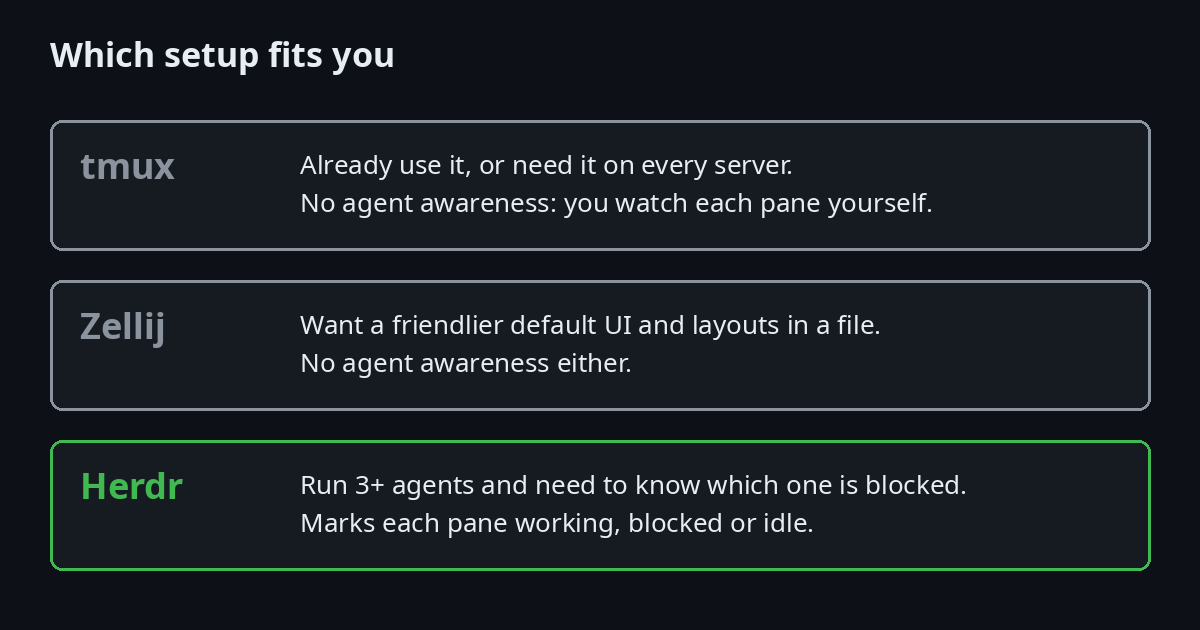
Choose by the number of agents you supervise, not by which tool sounds newest.
- One or two agents on a server you already SSH into: tmux. Nothing to install on most systems and nothing new to learn.
- Learning the terminal and want visible menus: Zellij.
- Three or more agents, or agents on more than one machine: Herdr. Its blocked state is the reason to use it.
You can use more than one. Herdr runs in any terminal, including one that has tmux inside it, though nesting multiplexers adds keystrokes and most people should pick one.
Common mistakes
- Two agents, one checkout. They overwrite each other's edits. Use a worktree per agent, as shown above.
- Agents in a plain SSH session. Closing the connection stops the processes. Run them inside tmux or Herdr first. If SSH itself is new to you, start with How to Set Up SSH on Linux.
- Nested multiplexers. tmux inside Herdr, or Zellij inside tmux, doubles the prefix keys. Pick one per machine.
- Waiting on a blocked agent you cannot see. Without a state indicator, a permission prompt can sit unnoticed for as long as you do not look. Check the panes on a timer, or use Herdr's blocked state.
- Expecting a restart to resume running work. Herdr restores the layout and can resume supported sessions, but the original processes do not survive a restart. Commit before you walk away.
Setup checklist
- Install the multiplexer you chose.
- Create one git worktree per task. Never let two agents share a checkout.
- Start one
claudeper window or pane, in its worktree. - Keep a
CLAUDE.mdin each repository with the commands and rules the agent should follow. Claude Code reads it at startup, as the memory documentation explains. Our Claude Code workflow guide covers how to write one. - Check the blocked and idle states at regular intervals. A blocked agent does nothing until you answer it.
Troubleshooting Claude Code in tmux and Herdr: Common Problems and Questions
Colours look wrong or washed out inside tmux
Add this to ~/.tmux.conf so tmux advertises a 256-colour terminal, then restart tmux:
set -g default-terminal "tmux-256color"
Pressing Escape feels slow in tmux
tmux waits a moment after Escape to see whether it is the start of a longer key sequence. Claude Code uses Escape to cancel, so the delay is noticeable. Lower it:
set -sg escape-time 10
Does Herdr work with Claude Code?
Yes. The Herdr README lists Claude Code among the supported agents, and the supported agents page describes how each agent's state is detected. Herdr does not replace Claude Code. It runs it in a pane and reports its state.
Is Herdr free?
Yes. It is licensed under Apache-2.0, and the source is on GitHub.
What happens to my agents if the server restarts?
A server restart ends tmux sessions. Plugins such as tmux-resurrect can rebuild the layout, but not the running processes. Herdr restores the saved layout and can resume supported agent sessions, but the original processes do not survive the restart either. Plan for interruptions: commit often, and keep your task notes in the repository.
Can I use tmux and Herdr together?
Technically yes, because Herdr runs in any terminal. In practice, nested multiplexers mean double prefix keys and confusing shortcuts. Pick one.
Do I need a separate worktree for each agent?
Not for reading code, but yes for editing it. Two agents writing to the same files will overwrite each other, and git will not warn you until you try to merge.
Further reading
- How to Install Claude Code on Linux (Beginner's Guide)
- Claude Code on Linux: Terminal Workflow for Developers
- How to Use tmux: Complete Guide
- tmux for Linux Developers: Complete Productivity Guide
- Running AI Agents Without a GUI on Linux Servers
- Git on Linux: The Complete Guide
- How to Set Up SSH on Linux
- Linux Terminal for Absolute Beginners
- Linux Commands Cheat Sheet
- Neovim as an AI-Powered Coding Assistant on Linux
- Claude Code overview (official docs), permissions, memory and CLAUDE.md and settings
- git worktree documentation
- tmux source and documentation and the tmux wiki
- Zellij project site and Zellij on GitHub
- Herdr site, Herdr docs, keyboard, config reference, session state, connecting machines and Herdr on GitHub

JM Carreira
I’ve used Linux since 2008 and it has been my main system since 2021. When an article has a “Tested on” box, I ran the steps on my Lenovo Tiny. More about me and the test machine.